

How to Join Vasion Automate Pro Beta on iOS



About Vasion Automate Pro
Vasion Suite is now mobile! The Vasion Mobile app lets users perform quick tasks like scanning paper documents, filling out electronic forms, and more from their mobile devices
Users no longer have to boot up their computer to access their important documents and pending Workflows
The Mobile app makes it easy to get quick tasks done, so you can free up time at your desk for your main priorities.
Workflows
Automated Workflows are configured to route information to the right people and systems at the right time to collect approvals, assign tasks, and complete documents
The Vasion Mobile app makes these Workflows accessible from a mobile device
For example, an employee needing to check the approval status of a PO Request in their Workflow can view it in a matter of seconds from the Mobile app
Wherever they are at – in a meeting, away from the office – the information they need is accessible at their fingertips.
As an end-user focused application, users can start and complete existing workflows in the Mobile app
When starting a new Workflow, you select an existing automated Workflow and complete the tasks needed to start it
This may be filling out a request form or uploading an expense report for approval
After sending the Workflow, you can view what step is pending in the Requests section of your Workspace
Pending Workflows appear in the user’s Task list in their Workspace dashboard, where they can simply click and complete all necessary tasks.
Scan
Vasion Mobile users do not need to install a local desktop scanner in order to scan and digitize their documents, like the Capture app in Vasion Suite
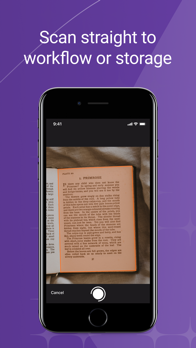
The app uses the device’s camera to scan the document, making scanning easier for remote and mobile employees
Scan uses a native iOS PDF scanner with barcode, and full-text optical character recognition (OCR) technology.
Scanning documents is a simple three step process: Use the camera to scan your paper documents, edit, reorder, copy, and modify any of the scanned pages, then send those pages directly to a Workflow or a Storage folder.
Forms
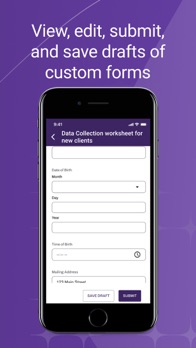
Vasion Mobile lets you access, fill out, sign, and submit existing eForms to start Workflows
You can fill out and submit existing forms directly from the application, rather than from a Workflow every time
To start, you select the type of form you want from the existing Forms list
Some forms require an eSignature or attachments with the form
Attach photos or files, scan new documents, or draw or type your signature when signing forms.
Storage
Just like Vasion Suite, Vasion Mobile gives employees access and control over their data and where it’s stored
After scanning a document, you can choose to send the scanned pages directly to either Workflows or Storage
Mobile users can upload documents to a text message, to Vasion Drive folders, or to cloud storage applications that allow for document uploading, like Google Drive, OneDrive, Box
Storage folders are encrypted by default, and configurable by an admin in Vasion Suite.
Reports
Reports is the only administrative feature available in Vasion Mobile
An administrator can grant a mobile user permission to view and run reports
By running a report, you can see a 360 view of all the activity and actions performed by users in Vasion Suite
There are different types of reports to see specific information like audit, user, document, and workflow reports
You can also customize and save report types, and schedule them to run at a certain time.
Anyone can download and install the Vasion Mobile app, but users need an active Vasion Suite account in order to log into their company's Vasion instance. Contact your Vasion Suite administrator for more information and to set up an account. There is no cost for downloading the Vasion Mobile app.
We invite all businesses to start their digital transformation today!


